
Table of Contents
Hosting
Characters Table
The Characters table is every character in your game: the party's, your NPCs, and anything you are preparing for later. It is where characters are created, organized, and handed to players.
Quick Notes
- A game holds up to 1000 characters.
- Creating a character does not put it in the party. Assign it on the Players page.
- Below a certain width the table becomes cards and the column filters move into a Filters drawer.
Create a character

New opens a drawer titled Add Character where you fill in the character's details. The same drawer, titled Edit Character, is what you get when editing one later.
The switch Give user control over character? decides whether an assigned player can edit the sheet, or only read it.
Search for a character

Search name... filters the table by character name as you type.
Filter and sort by column


Each column header sorts and filters: Name, Level, one column for each detail your game asks for, and Tags. A 5e game asks for Race, Class, Sub Class, Alignment, Proficiencies and Languages. You can change the details in Settings, under Character sheet.
Clear appears once anything is filtering and resets the search and every column filter at once.
Choose which columns to show

Show/Hide Columns trims the table to what you care about, with Show All and Hide All for the extremes.
On a narrow screen the table becomes a card list and the headers disappear, so the same filters are reached through the Filters button instead.
Organize with tags

Tags opens the tag panel, where you search existing tags, Add Tag creates new ones, and selected tags can be deleted together.
The button becomes Close Character Tags while the panel is open, because it is a toggle rather than a modal.
The character actions menu

Each row's menu holds its entries in groups. Open and Summary look at a character. Send Items, Clone, Send to Library, Download, Character Sheet and Download PDF do something with one, and have sections of their own below. Edit and Delete change or remove it.
Download PDF only appears once the character has a saved sheet design.
Send items to a character

Send Items gives a character items directly from the table, without opening their sheet. Over a selection, the same action equips a whole party at once.
Clone a character

Clone makes a copy, which is the fastest way to build a set of similar NPCs from one you have already detailed.
A clone also takes the original's printable sheet design, and makes its own PDF the first time one is downloaded.
Download and upload character files

Download saves a character as a file. Upload in the toolbar brings one in. This is how a player's existing character joins your game.
Design and download a printable sheet
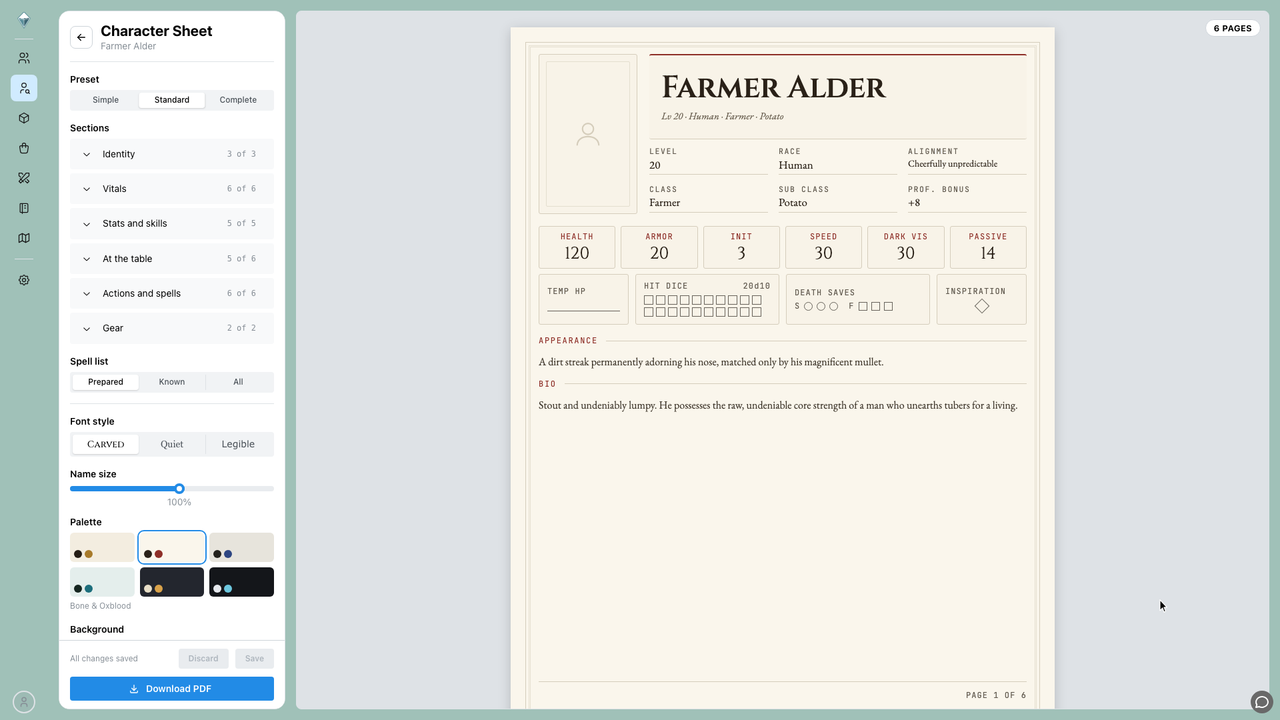
Character Sheet opens the printable sheet designer for that character, the same one players use. The Printable Sheet topic walks through it.
Once a character has a saved design, Download PDF gets its PDF straight from the table. If the character has changed since the last PDF was made, a notification names the character while a new one is built, and the download starts on its own when it's ready.
Work on several at once

Ticking rows brings up a bar showing how many are selected, with Clear to drop the selection.
From there, Send Items, To Library and Delete apply across everything you picked.
Reuse characters through your Library

Send to Library keeps a copy outside this game, printable sheet and all; Library in the toolbar brings one back in, singly or as a whole group.
Both are Base actions. See Vault & Library for what happens to a character once it is there.
When the game is full
At 1000 characters the create, upload and library buttons stop working, and hovering one explains why rather than leaving you guessing.